Shared decks
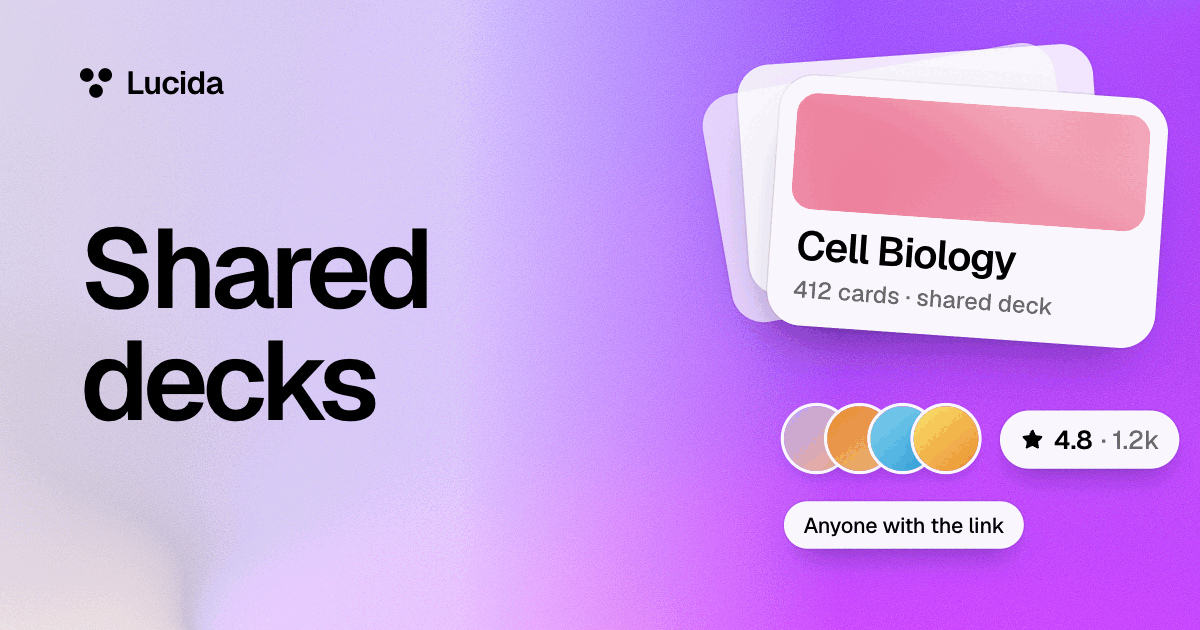
Share any deck with a link or make it public, and other people can study it, copy it or suggest changes, while you decide which changes go in and everyone keeps their own schedule. You can also study anyone’s shared deck, find decks in Discover, and go back to any earlier version of a deck you share.
On this page
At a glance
| Feature | Who can see it | Where it shows up | Good for |
|---|---|---|---|
| Private | Only you | Nowhere | Decks you’re still making. Every deck starts here |
| Link only | Anyone with the link | Not on your profile or in Discover. Its page asks search engines not to list it | Sending a deck to classmates or friends |
| Public | Anyone | Your profile, Discover and search engines | Decks you want everyone to find |
How to share a deck, step by step
Two ways to use someone’s deck
- The deck joins your library and follows the owner’s changes.
- You can’t edit its cards (suggest a change instead), but the schedule, goal and settings are yours.
- If the owner makes a small fix, you keep your schedule for that card.
- If they change the answer, the card comes back as new, so you learn the right thing.
- You get your own deck to change.
- It remembers where it came from and, if you like, offers you the owner’s later changes to take or skip one by one.
- If an owner stops sharing, a deck you study becomes yours to keep, marked with their name.
Why make a copy
Ready-made cards rarely fit you exactly. In a 2026 experiment with 42 experienced spaced repetition users reading articles, the average reader would have had to delete more than a third of a ready-made set of prompts to match what they wanted to remember. That’s the case for Make a copy: keep what helps and cut the rest.
Suggestions and History
Anyone signed in can suggest a change to a deck you share: fix a card, add one, or take one out, with a note. Nothing changes until you take it. You can take or skip each change, or take them all. One person can have five suggestions waiting on a deck at a time.
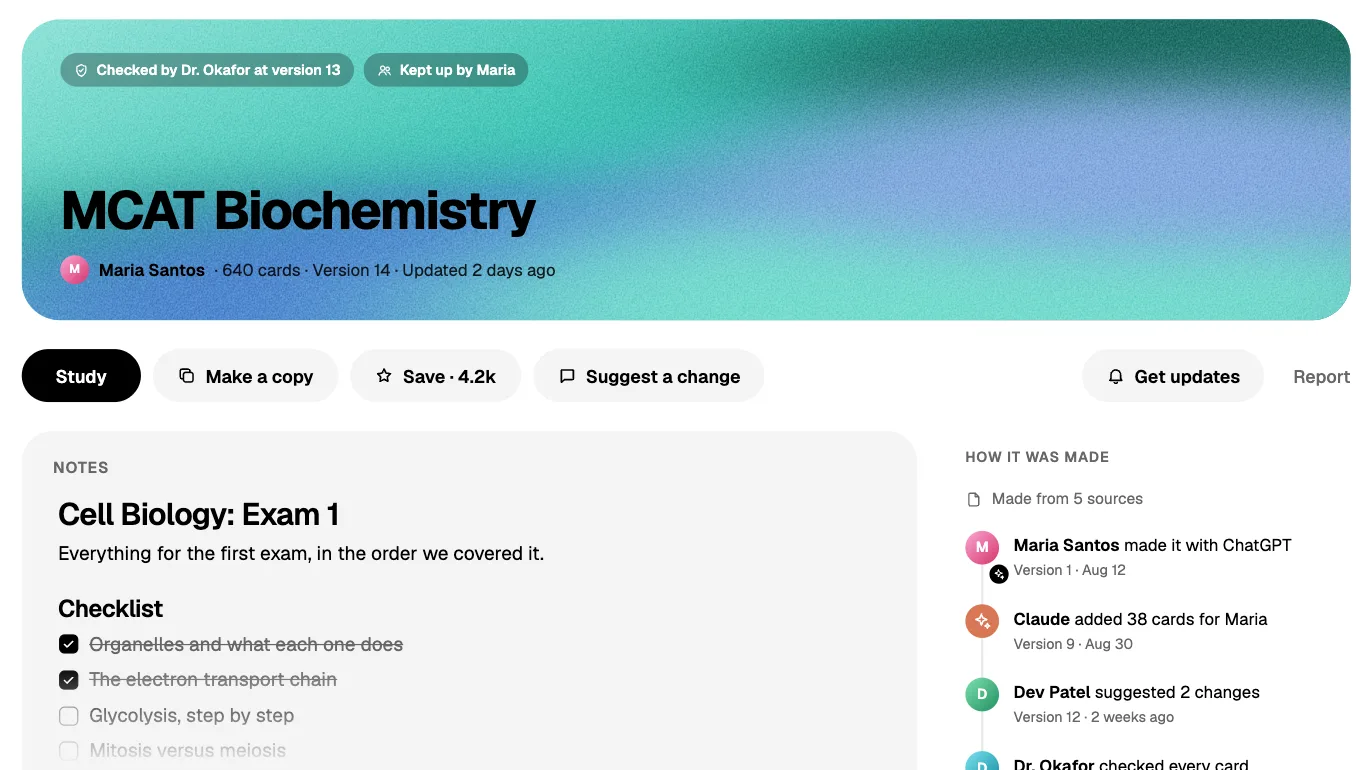
Every change is saved as a version in History, with who made it (and which AI app, if one did). You can go back to any version. Going back is a new version itself, so it can be undone too. History shows the newest 50 versions.
Helpers you name edit directly. Turn on Helpers take suggestions too, and they can take other people’s suggestions as well. Your AI can suggest changes to decks you study, and on your own decks it edits like you do (see AI flashcards).
Discover, profiles and saves
Discover lists public decks people like this week, decks a verified teacher has checked, new decks, and decks from people you follow. You can narrow it by topic, or search decks, people and courses.
You can save a deck, follow a person, or watch a deck for news. A deck’s page shows how many people study it, copy it and save it. Your profile (lucida.cards/@handle) lists your public decks, a short bio, and your school and subject. A profile stays out of search results until you choose to be listed.
Checked by a teacher
A verified teacher can check a deck they can see. A Checked by badge then says they went through every card, and it stays until the deck changes. Teachers get verified by asking in Settings, with a school email or a link that shows where they teach, and the Lucida team reviews each request. The badge means one teacher checked the deck. It isn’t a guarantee, so read a shared deck before an exam.
Your progress stays yours
- The cards are shared. Your progress never is: nobody sees your schedule, streak or scores.
- On Pro, a deck’s owner can see which cards people miss most, as percentages without names.
- Pictures and sounds in a public deck are public links. Pictures and sounds in decks you study don’t count toward your 100 on Free.
- You can report a deck for being wrong or harmful, spam, or someone else’s work.
Sources and the Guide
Every deck keeps its Sources: what its cards were made from, like a file, a recording, a video, pasted text or a topic. Sources are private, even on a shared deck, and a public deck’s page may only say “Made from 3 sources”.
A deck can also have a Guide, a page written in Markdown that shows under the deck’s header like a README. A shared deck’s Guide shows on its public page.
What to know first
- You can’t share a deck you only study. Make a copy first.
- Lucida has no official textbook decks. Discover holds what people have chosen to share, and shared decks can be wrong.
- Only share cards you have the right to share. Lucida’s terms ask you to add only things you have the right to use.
- To study or copy a deck, people need a Lucida account. Anyone can read a public or link-only deck’s page.
Test yourself
Show the answerShow the questionIs a Link only deck shown in Discover or on your profile?No. Anyone with the link can open it, but its page asks search engines not to list it.
Show the answerShow the questionCan other people change a deck you share?No. They can suggest changes, and you take or skip each one, but only helpers you name can edit it directly.
Show the answerShow the questionWhat happens to a card you study when the owner changes its answer?The card comes back as new, so you learn the right thing. A small fix keeps your schedule for that card.
Show the answerShow the questionWhat can a deck’s owner see about the people who study it?Not their schedule, streak or scores. On Pro, the owner sees only which cards people miss most, as percentages without names.
Questions
What’s the difference between Link only and Public?
Link only means anyone with the link can open the deck, but it isn’t on your profile or in Discover, and its page asks search engines not to list it. Public decks show on your profile, in Discover and in search engines.
Can other people change my deck?
No. They can suggest changes, and you take or skip each one. Only helpers you name can edit it directly.
What happens to my progress when I study someone’s deck?
It stays yours. Your schedule, streak and scores never go to the owner. On Pro, an owner sees only which cards people miss most, as percentages without names.
Can I edit a deck I study?
Not when you study it as it is. Suggest a change instead, or make a copy if you want your own version.
What if the owner changes a card I’ve already learned?
A small fix, like a typo, keeps your schedule for that card. A new answer brings the card back as a new card, so you learn the right thing.
How do I find flashcards for my course?
Search Discover by topic or by words, or ask your teacher or classmates for their deck’s link. Lucida has no official textbook decks, so check what you find.
Can search engines find my deck?
Only Public decks. A Link only deck’s page asks search engines not to list it.
What does the Checked badge mean?
A verified teacher says they checked every card in the deck. The badge stays until the deck changes.
Can people see the files my cards were made from?
No. A deck’s Sources are private, even on a shared deck. A public deck’s page may only say “Made from 3 sources”.
Keep reading
Sources (3)
The pages this one was written from, and the day each was checked.
- Kirkby and Matuschak (2026), Can LLMs create lasting flashcards from readers’ highlights? (Memory Machines) · checked September 30, 2026
- Lucida Terms of Service (updated September 24, 2026) · checked September 30, 2026
- Lucida Privacy Policy (updated September 24, 2026) · checked October 1, 2026