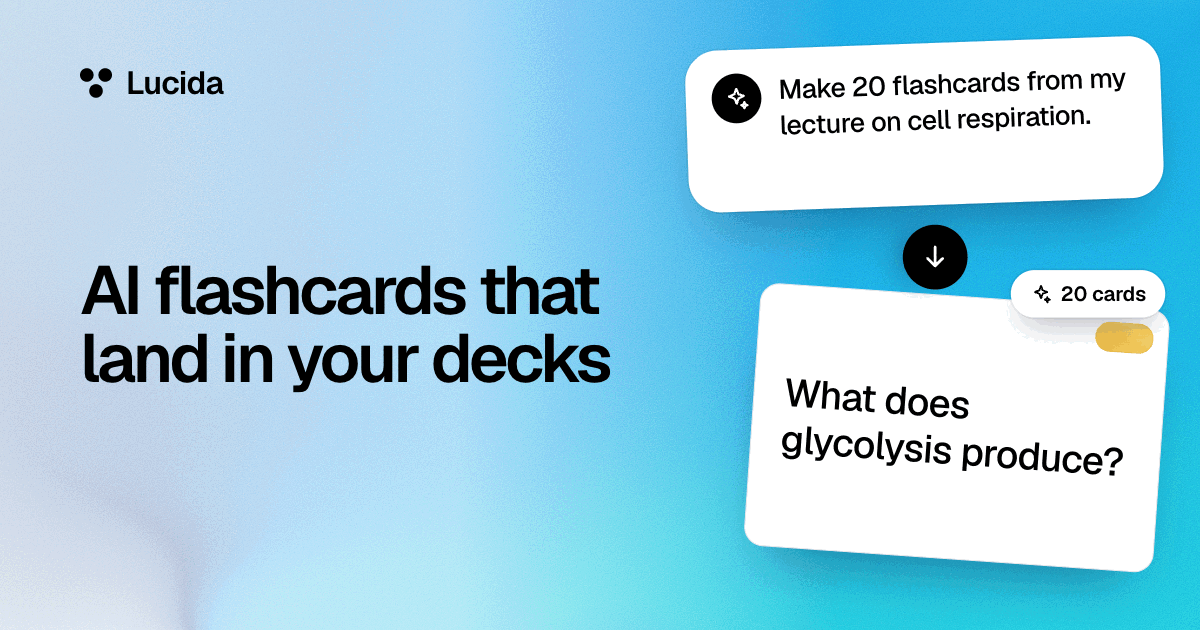
AI flashcards that land in your decks
Lucida can make cards from your files, pictures, recordings, YouTube links or a topic, and your own AI app can make and edit them too: add Lucida’s link to Claude, ChatGPT, Cursor or any app that can add a remote MCP server by its web address, sign in to Lucida, and ask it for flashcards. Either way the cards land in your decks, Lucida plans the reviews, and on the free plan your own AI can make as many cards as you want.
On this page
At a glance
| App | How to add Lucida’s link | Who can do it, per the app’s own docs | Steps inside Lucida |
|---|---|---|---|
| Claude | Customize, then Connectors, then Add custom connector. Paste the link, choose Connect, then sign in to Lucida and press Allow. | Custom connectors work on the Free (one connector), Pro, Max, Team and Enterprise plans | Yes |
| ChatGPT | Turn on Developer mode in ChatGPT’s settings, then add a developer-mode app for a remote MCP server, paste the link and pick OAuth. Sign in to Lucida and press Allow. | OpenAI lists Pro, Plus, Business, Enterprise and Education accounts, on the web | Yes |
| Cursor | Use the Add to Cursor button in Lucida’s setup, or put your private link in Cursor’s mcp.json file (Connect AI copies it). Cursor can’t sign in to Lucida, so it uses that link. | Cursor connects to remote servers over HTTP and SSE | Yes |
| Gemini | In the Gemini web app, open Connected Apps, add a custom app and paste the link, then sign in to Lucida and press Allow. | Google says you must be 18 or over and in the US, use a personal Google Account with Keep Activity on, and use English | No |
| Grok | Go to grok.com/connectors, choose New Connector, then Custom, and paste the link. Sign in to Lucida when it asks, and press Allow. | xAI says connectors are available to all Grok users, and the server must be reachable over the public internet | No |
| Any other MCP app | Paste the link wherever the app asks for a remote MCP server URL, and sign in to Lucida. An app that can’t sign in can use your private link. | Depends on the app | Yes (Any MCP app) |
Make cards in Lucida
Choose Make cards, add what you want to learn from, and Lucida writes the cards with its own AI. You pick the deck (new or one you have), how many cards (Auto, 10, 20 or 50), the kinds (basic or fill in the blank, and audio cards once a language is set) and the language. Lucida first shows the new cards. You edit, remove or keep each one, or keep them all, and then they are saved in the deck.
You can add:
- A file. A PDF, a PowerPoint (.pptx), a Word file (.docx), a text file, or a lecture’s captions (.srt or .vtt).
- Pictures. A photo of notes, slides, a whiteboard or a book page. On the web, the file picker offers the camera on phones.
- A recording. An audio file (a long one is cut into parts of ten minutes or less on your device, up to your plan’s time), or a lecture recorded in the app with the microphone, with a timer, pause and stop.
- A YouTube link. Lucida watches a public video, or you can paste the video’s transcript instead.
- Pasted text. Paste your notes or any other text.
- A topic. Type it in words, like “the Krebs cycle”.
What happens to what you add
Text is pulled out of PDFs, slides, Word files and caption files on Lucida’s server, without an AI. Then an AI service writes the cards from that text, your pictures, scanned pages, audio, or the topic. A YouTube link goes to Google’s Gemini so it can watch the video.
Lucida asks for services that say they don’t keep it or train on it. Uploaded files are deleted after the make unless you keep them as the deck’s Source.
Sources and the Guide
Every deck keeps its Sources: what its cards were made from, whether a file, a recording, a video, pasted text or a topic. Each card remembers its page or time and can open the source there. Deleting a source removes its file, and the cards stay. Stored Sources have room for 500 files and 500 MB on Free, and 5,000 files and 5 GB on Pro.
Sources are private, even on a shared deck. A public deck’s page may only say “Made from 3 sources”.
When Lucida makes cards it also drafts starter notes for the deck from the same material: a title, a short overview, and the main ideas as headings in order, each with the page or time it came from. You see them next to the cards and can turn them off. A deck with no Guide gets them as its Guide. A deck that has one keeps it, and the notes become a new page named after the source.
For learning a language, choose the language and turn on Audio: Lucida writes words and short phrases that your device’s voice reads aloud, and the back says what they mean.
A deck can also have a Guide: a page written in Markdown (headings, lists, task lists, links, tables, code, quotes and pictures), shown under the deck’s header like a README. A Guide can have extra pages and a short history of versions, and “Make cards from this guide” turns it into cards. On a shared deck, the Guide shows on its public page.
How it works, step by step
To make cards with your own AI app, you connect it once and then ask it for cards. MCP, the Model Context Protocol, is an open standard for connecting AI apps to outside tools and data. Lucida’s link is an MCP server that lets your AI read and write your flashcards once you sign in to Lucida from it. Lucida shows step-by-step setup for Claude, ChatGPT and Cursor. Gemini and Grok can add the same link, but Lucida has no steps for them, and menu names change, so follow each app’s own help page (linked under Sources).
- 1. Copy the link. It is the same for everyone, with no secret in it: app.lucida.cards/mcp. Connect AI in Lucida has it too, with a Copy button.
- 2. Add the link to your AI app and sign in. Use the steps in the table above: your AI app opens Lucida’s sign-in, and you press Allow. You only do this once.
- 3. Ask for cards. For example: “Make 20 flashcards from these lecture notes, one idea per card.” Attach your notes or slides. Your AI reads them and sends Lucida the cards.
- 4. Study. The cards are in your decks, each one already on the review schedule. If you turned on Let me check AI cards first, they wait under Cards to check until you keep or toss them.
Signing in, and your private link
Lucida’s link opens nothing on its own: your AI app gets in only after you sign in and press Allow. Every app you allow is listed on the Connect AI page, and Disconnect ends it at once. An app that can’t sign in, like Cursor, can use your private link instead: Connect AI copies it without showing it. Anyone who has that link can reach your cards, so don’t share it or post it. If it leaks, open Connect AI and choose Make a new link. The old link stops working right away.
What your AI can do with your cards
- Look at your decks, your cards and what’s due, so it can quiz you.
- Add cards of four kinds: question and answer, fill in the blank, picture, and sound. It can add up to 500 in one request.
- Fix or change cards, put decks in folders, and set a deck’s background.
- Write Learn mode questions for your cards: multiple choice with believable wrong answers, and true-or-false statements, each with a short why. It can also leave a short explanation of a card’s answer.
- Search the decks other people share on Lucida and add one to your library, or suggest fixes to a deck you study.
- On Pro, read your weak spots and your recent review history, so it can quiz you on what you forget.
What your AI can’t do
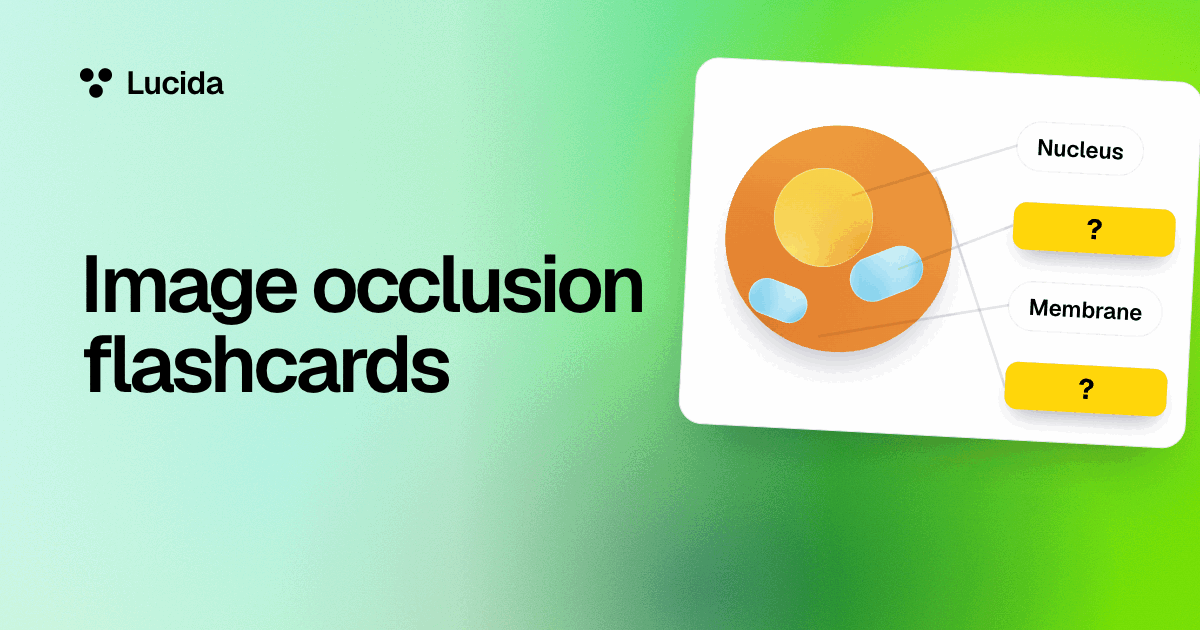
- Draw the hidden boxes for picture cards. You add those in the editor (see image occlusion).
- Delete cards, unless you switch that on.
- Change anything on other people’s decks. It can only suggest changes.
- Read PDFs or slides through Lucida’s link. Your AI app reads them and sends Lucida the cards. To have Lucida make cards from a file, use Make cards in Lucida.
You stay in charge
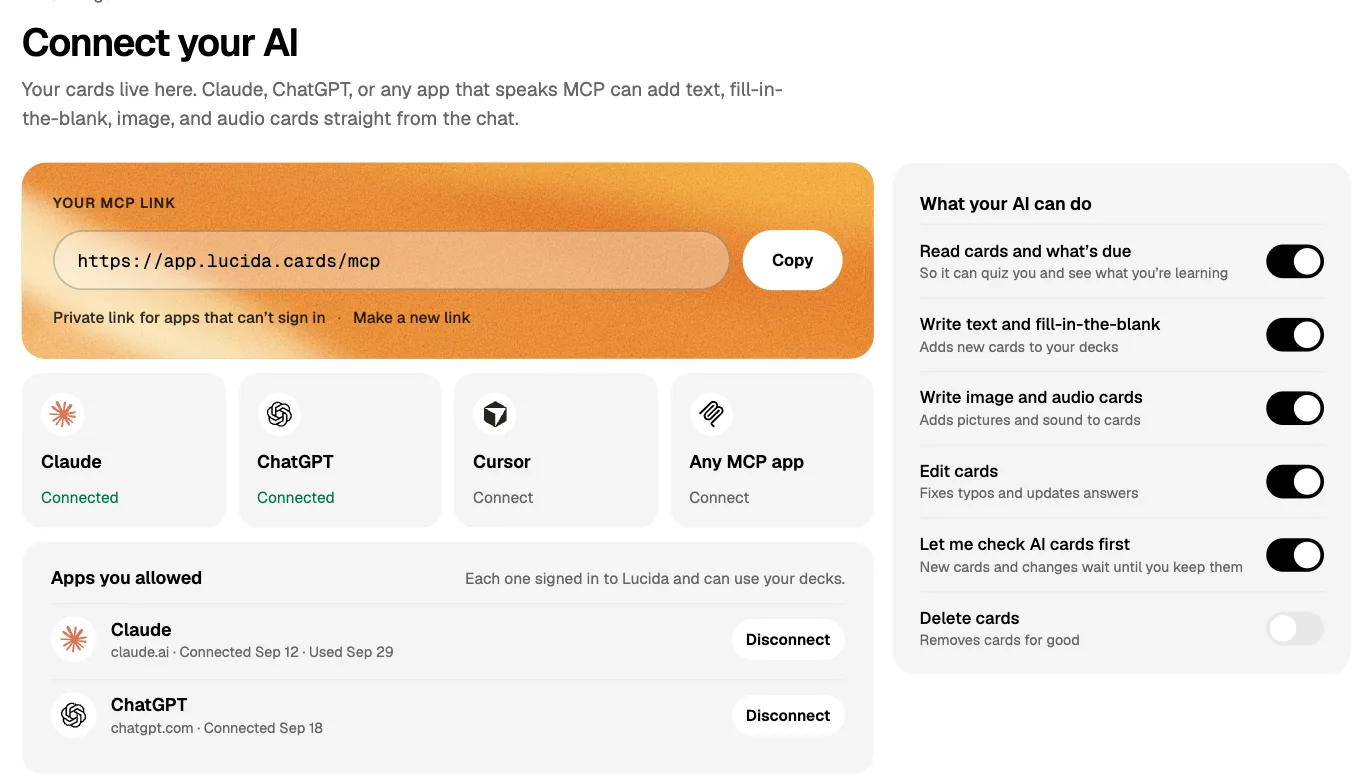
On the Connect AI page you choose what your AI may do. Tools you switch off aren’t even offered to the AI.
- Read cards and what’s due (on by default)
- Write text and fill-in-the-blank cards (on)
- Write image and audio cards (on)
- Edit cards (on)
- Let me check AI cards first (off): new cards and changes wait until you keep them
- Delete cards (off)
Getting good cards from an AI
An AI is quick at drafting cards and not always good at it. In a 2026 test by Ozzie Kirkby and Andy Matuschak, using cards written from a reader’s highlights, even the best model they tried, GPT-5.2, made cards the authors rated unusable (off target, or too vague to work months later) 36% of the time. That was a different job from studying for a course, but the lesson holds: read what it makes. Lucida shows the cards it makes before they are saved, and with your own AI you can turn on Let me check AI cards first for anything that matters, like an exam.
Some prompt habits help. They come from Piotr Wozniak’s twenty rules of formulating knowledge, which Anki’s manual recommends too:
- One idea per card. Wozniak’s minimum information principle: make each card as simple as it can be.
- Blanks for facts inside sentences. Ask for fill-in-the-blank cards. Wozniak calls cloze deletion easy and effective.
- Avoid lists. Wozniak warns that sets and enumerations are hard to remember, so ask for one blank or one card per item.
- Give it your source. Share your notes or slides and tell it to stick to them, so it doesn’t add facts your course never covered.
- Ask for a short why in each card’s note, so a wrong answer teaches you something.
A prompt to start with
Try something like: “Here are my lecture notes. Make flashcards for my Cell Biology deck, tagged Exam 1. One idea per card. Use fill-in-the-blank for facts inside sentences, and add a one-line why in the note. Then write Learn mode questions for the cards that test understanding.”
Quizzes and explanations
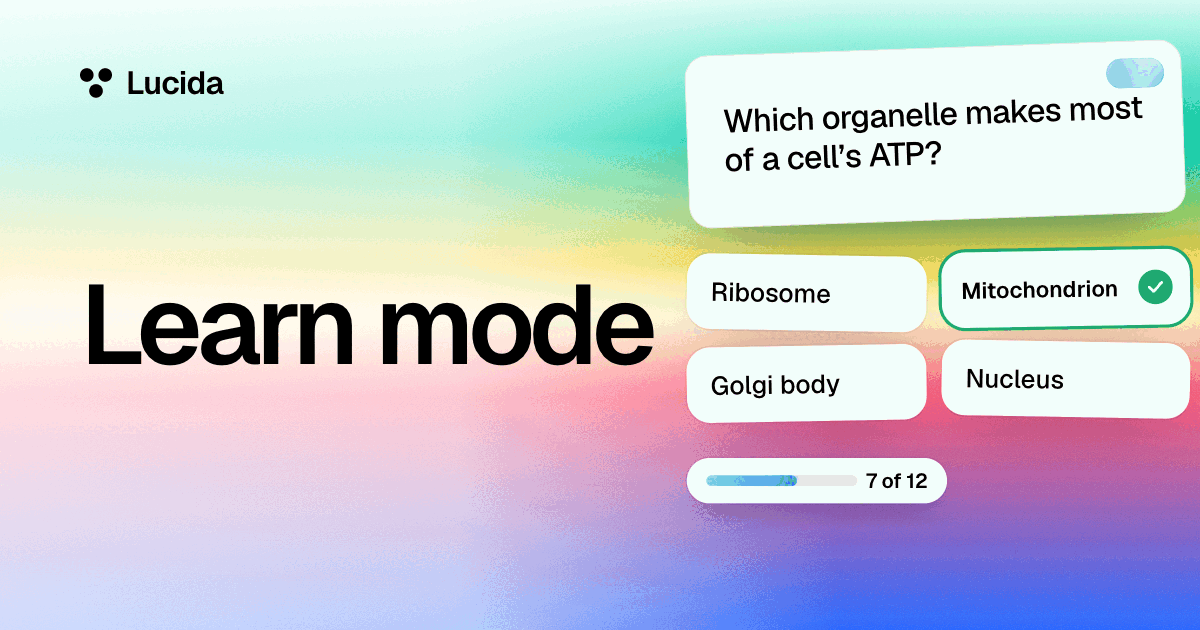
Learn mode uses the questions your AI wrote when a card has them (about four times in five), and otherwise asks from the card’s own words and your other answers. Questions can ask about cause and effect instead of repeating the card.
When you tap Explain on a card, you see a two-to-four-sentence explanation: your AI’s, if it wrote one, or one from Lucida’s own AI (3 a day on Free, up to 200 a day on Pro). Each explanation is saved on the card, so seeing it again costs nothing. Explain is one of three places Lucida’s own AI is used. The others are making cards and starting a live game from a topic. Everything else your AI does for you happens in your own AI app, through Lucida’s link.
Limits and costs
- Making cards in Lucida, Free: 3 makes a day. One make takes up to 30 pages (a slide or a scanned page counts as a page), 15 minutes of recording or video, or 10 pictures, in files of up to 20 MB.
- Making cards in Lucida, Pro: 30 makes a day, up to 300 pages, 2 hours of recording or video, or 50 pictures, in files of up to 40 MB (25 MB for an audio file).
- One make gives at most 100 cards. A live game started from a topic counts as a make.
- Lucida can’t make cards from a web page address. Paste the page’s text, or save the page as a PDF and add that.
- Making cards with your own AI app is free, with no cap from Lucida on the number of cards on the free plan.
- Free includes up to 100 pictures and sounds. A picture with hidden parts counts once.
- Sound cards: on Pro, Lucida makes a natural-sounding voice for the sound cards your AI writes. On Free, the app reads them aloud with your device’s voice.
- Photo covers for decks are Pro, including ones your AI sets.
- A picture or sound can come from a web link. Lucida checks that it’s a real picture (PNG, JPEG, GIF or WebP) or sound (MP3, M4A, WAV, OGG or WebM) of up to 20 MB. iPhone HEIC photos aren’t accepted.
- Your AI app may have its own plan limits (see the table). For example, OpenAI lists developer mode for paid accounts.
What about the flashcards inside ChatGPT and Gemini?
ChatGPT and Gemini can now show flashcards in their own apps. OpenAI’s education newsletter (September 24, 2026) describes flip-card flashcards in ChatGPT that you can find in your library, and Google says study notebooks in Gemini can make interactive flashcards through NotebookLM. Lucida is where cards from any AI end up when you want them on an FSRS schedule, with Learn mode, sharing and live games, in a library you can export.
Test yourself
Show the answerShow the questionWhich AI apps does Lucida show step-by-step setup for?Claude, ChatGPT and Cursor. Gemini and Grok can add the same link, but Lucida has no steps for them.
Show the answerShow the questionWhat do you do if your private link leaks?Open Connect AI and choose Make a new link. The old link stops working right away.
Show the answerShow the questionWhich Connect AI settings are off by default?“Let me check AI cards first” and “Delete cards.” The rest are on.
Show the answerShow the questionHow many cards can your AI add in one request?Up to 500. On the free plan, there is no cap on the number of cards.
Questions
Can Lucida make flashcards without my own AI app?
Yes. Choose Make cards and add a PDF, PowerPoint, Word or text file, pictures, an audio file or a recording, a YouTube link, pasted text, or a topic. Lucida writes the cards, shows them to you first, and saves the ones you keep in your deck. Your own AI app can still make and edit cards through Lucida’s link.
What are the limits for making cards in Lucida?
Free: 3 makes a day, each up to 30 pages, 15 minutes of recording or video, or 10 pictures, with files up to 20 MB. Pro: 30 makes a day, up to 300 pages, 2 hours of recording or video, or 50 pictures, with files up to 40 MB (25 MB for an audio file). One make gives at most 100 cards.
Can ChatGPT make flashcards?
Yes. ChatGPT can write flashcards in a chat, and OpenAI describes flip-card flashcards in ChatGPT too. With Lucida’s link added as a developer-mode app (you sign in to Lucida once), it can save the cards straight into your Lucida decks, where they get a review schedule.
Can Claude make flashcards for Lucida?
Yes. Add Lucida’s link as a custom connector in Claude (Customize, then Connectors), sign in to Lucida and press Allow, then ask for cards. Claude’s free plan allows one custom connector.
Does Lucida work with Gemini or Grok?
Both can add a custom MCP server by its web address, so Lucida’s link should work, but Lucida’s Connect AI page has steps only for Claude, ChatGPT and Cursor. Google limits custom apps in Gemini to people 18 or over in the US, on personal accounts, in English.
Do I need a paid AI subscription?
Not for Lucida itself: Lucida makes cards with its own AI, 3 makes a day on the free plan, with no AI subscription. To use your own AI app, Claude’s free plan allows one custom connector. OpenAI lists ChatGPT’s developer mode for Pro, Plus, Business, Enterprise and Education accounts. Check your AI app’s own plan rules.
What is MCP?
MCP, the Model Context Protocol, is an open standard for connecting AI apps to outside tools and data. Lucida’s link is an MCP server that lets your AI read and write your flashcards.
Can I make flashcards from a PDF or lecture slides?
Yes, two ways. In Lucida, choose Make cards and add the PDF, PowerPoint or Word file: Lucida makes the cards and shows them to you first (Free: 3 makes a day, up to 30 pages each). Or attach the file in your own AI app, such as Claude or ChatGPT, and ask for flashcards: your AI reads the file and sends Lucida the cards.
Can the AI delete or change my cards?
It can edit cards while Edit is on, and it can delete only if you switch Delete on, which is off by default. Turn on Let me check AI cards first and every new card and change waits for your OK.
Is connecting my AI to Lucida safe?
Lucida’s link has no secret in it: an app gets in only after you sign in and press Allow, and Disconnect on the Connect AI page ends it. Your private link, for apps that can’t sign in, is the key to your library, so keep it private. If it leaks, choose Make a new link and the old one stops working at once. Lucida’s privacy policy says it doesn’t use your cards to train AI models.
Is what I add sent to an AI service?
Yes, to write the cards. Text is pulled out of PDFs, slides and Word files on Lucida’s server without an AI, and then that text, your pictures, scanned pages, audio or the topic go to an AI service. A YouTube link goes to Google’s Gemini so it can watch the video. Lucida asks for services that say they don’t keep it or train on it, and uploaded files are deleted after the make unless you keep them as the deck’s Source.
Are AI-made flashcards accurate?
Not always. Lucida’s terms say AI apps can make mistakes and to check what matters, especially before an exam. Lucida shows the cards it makes before they are saved, so you can edit, remove or keep each one. With your own AI, give it your own notes, read the cards, or use Let me check AI cards first.
Does making AI cards cost extra?
No. On the free plan your own AI app can make as many cards as you want, and Lucida’s own card maker is free for 3 makes a day. Pro ($5.99 a month or $49.99 a year, as of September 2026) adds extras like Stats, 30 makes a day, exam dates and natural voices for sound cards.
Keep reading
Sources (14)
The pages this one was written from, and the day each was checked.
- Model Context Protocol: What is MCP? · checked September 30, 2026
- Claude documentation: Add a connector that isn’t in the directory · checked September 30, 2026
- OpenAI documentation: ChatGPT developer mode · checked September 30, 2026
- Cursor documentation: Model Context Protocol (MCP) · checked September 30, 2026
- Gemini Apps Help: Connect and manage custom apps · checked September 30, 2026
- xAI documentation: Connectors (last updated July 17, 2026) · checked September 30, 2026
- Wozniak (1999), Twenty rules of formulating knowledge, SuperMemo · checked September 30, 2026
- Anki Manual: Leeches · checked September 30, 2026
- Kirkby and Matuschak (2026), Can LLMs create lasting flashcards from readers’ highlights? (Memory Machines) · checked September 30, 2026
- OpenAI, ChatGPT for Education: The Edu Prompt, Issue 6 (September 24, 2026) · checked September 30, 2026
- Google, Study notebooks in the Gemini app (June 25, 2026) · checked September 30, 2026
- Lucida Privacy Policy (updated September 24, 2026) · checked October 1, 2026
- Lucida Terms of Service (updated September 24, 2026) · checked September 30, 2026
- Lucida pricing (what Free and Pro include, as of September 2026) · checked October 1, 2026