Connect Lucida to your AI
Last updated October 2, 2026
Lucida keeps your flashcards. Add it to Claude, ChatGPT, Grok, Gemini, Perplexity or Mistral, and your AI can make cards, fix them, and quiz you right in the chat. It takes about a minute.
- 1Copy the addressUse it exactly as written
- 2Add it in your AIAs a connector, also called an MCP server
- 3Sign in and allowSign in to Lucida if it asks, then press Allow
- 4Ask for cardsStart a chat and turn Lucida on
What you need
- A Lucida account (it’s free). You sign in to it when you connect.
- An AI app that lets you add a connector, also called an MCP server, by its address.
The address to paste:
https://app.lucida.cards/mcp
Use it exactly as written, with nothing after it. The address lucida.cards/mcp sends your AI to a different site, and then signing in fails.
Claude
- Open claude.ai, then Customize, then Connectors.
- Choose Add custom connector. Name it Lucida and paste the address.
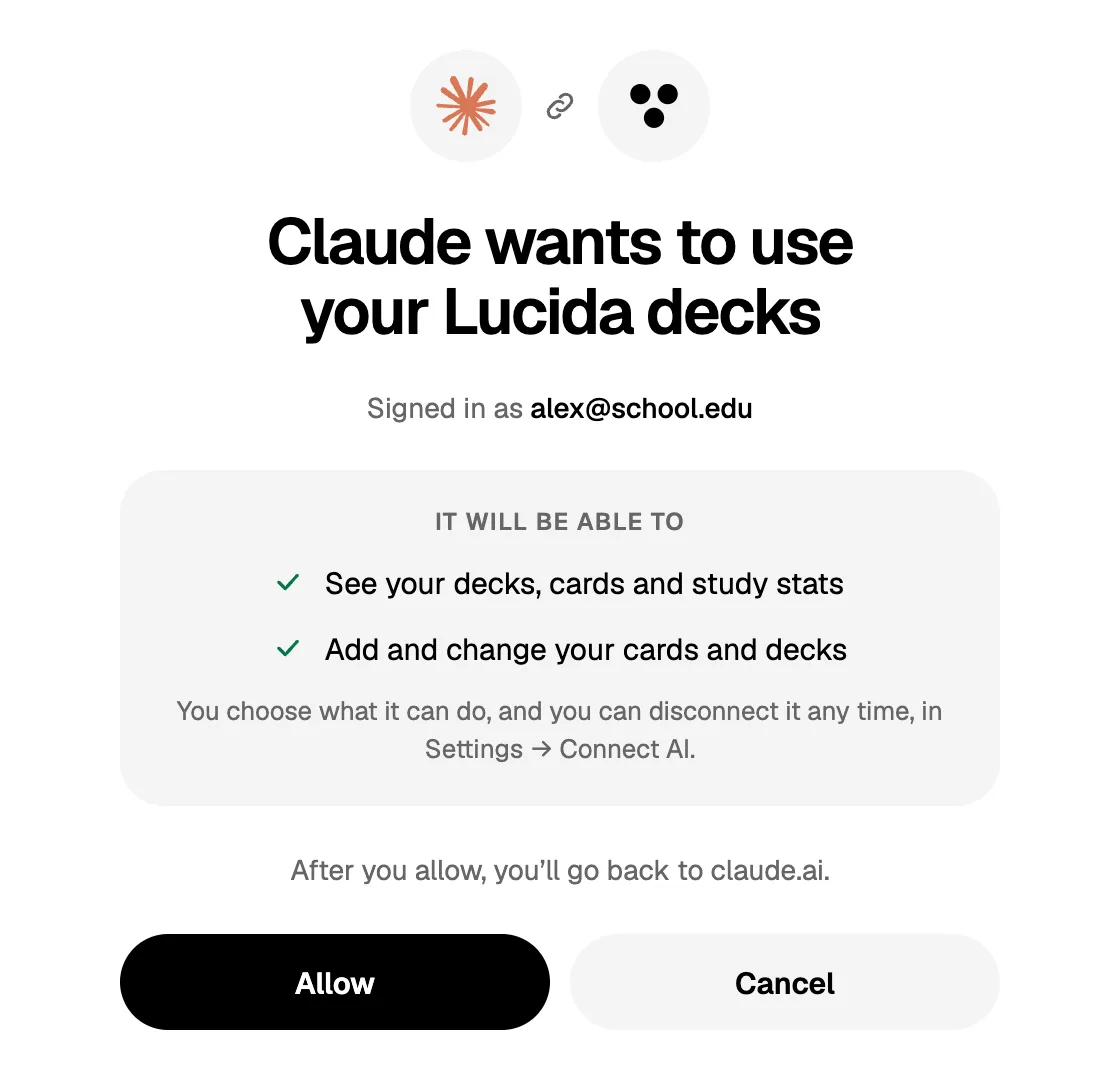
- Choose Connect. Sign in to Lucida if it asks, then press Allow.
- Start a chat, turn Lucida on from the + menu, and ask for cards.
In Claude Code, run claude mcp add --transport http lucida https://app.lucida.cards/mcp, then /mcp inside Claude Code to sign in.
ChatGPT
- Open ChatGPT, then Settings, then Apps (it may say Connectors).
- Turn on Developer mode in the advanced settings, and create a new app.
- Name it Lucida, paste the address, and pick OAuth for how it signs in.
- Sign in to Lucida and press Allow. Then add Lucida to a chat and ask for cards.
ChatGPT’s menus change often. Look for where it adds a custom connector or MCP server.
Grok, Gemini, Perplexity and Mistral
- Gemini: on gemini.google.com, open Settings, then Connected Apps, then Add a custom app. Paste the address and follow the steps. Google offers this to personal Google accounts, 18 and over, in the US.
- Grok: open Connectors, add a custom connector, and paste the address. It may need a paid plan. On a Business plan, a team admin adds it at console.x.ai.
- Perplexity: open Account settings, then Connectors, then Custom connector, then Remote. Paste the address and choose OAuth.
- Mistral (Le Chat): open Connectors, then Add Connector, then the Custom MCP Connector tab. Paste the address and choose OAuth 2.1.
Sign in to Lucida when it asks, then press Allow. These menus change. If you don’t see the same words, look for where the app adds a custom connector, or MCP server, by its address.
If your app can’t sign in
Some tools, like Cursor, can’t sign in to Lucida. For them, open Settings, then Connect AI, and press “Private link for apps that can’t sign in”. It copies a link of your own that works without signing in. Keep it to yourself, because anyone with the link can reach your cards. “Make a new link” there turns the old one off.
Try asking
- “Make 15 flashcards about the Krebs cycle and put them in a deck called Biology.”
- “What’s due today? Quiz me on it.”
- “Turn these lecture notes into fill-in-the-blank cards.” (paste the notes)
- “Write Learn mode questions for my Cell Biology deck.”
- “Which topics am I weakest at?” (Lucida Pro)
- “Find a public MCAT chemistry deck and add it to my library.”
What your AI can do
- Read your decks, cards, and study stats.
- Add cards: a question and answer, fill in the blank, a picture with a question, or a sound to recognize.
- Change cards and decks, and write Learn mode questions.
- Delete cards, but only if you turn that on.
- Find decks other people share, add them to your library, and suggest changes to them.
You choose what it may do in Settings, then Connect AI. “Let me check AI cards first” holds every new card and change until you keep it. Two tools, what you’re weakest at and your review history, are part of Lucida Pro.
Limits
- An AI can add up to 500 cards in one request.
- Free includes up to 100 pictures and sounds. Pro has no limit. Natural voices for sound cards and photo covers are part of Pro.
- A picture or sound can be up to 20 MB. It can come from a web link or from a file you upload in the chat.
- An AI sees up to 500 cards when it lists a deck, and the first 100 cards of a shared deck.
Your data
- Your AI reads and changes only your own library, through the account you signed in with.
- Lucida keeps your cards and the list of apps you allowed. It doesn’t see your chats, only what your AI sends it, like the cards it makes. What you tell the AI app is covered by that company’s own privacy policy.
- Every app you allow is listed in Settings, then Connect AI, and Disconnect ends it at once.
Read the privacy policy.
If it doesn’t work
- Check the address. It has to be exactly https://app.lucida.cards/mcp.
- Remove the connector and add it again.
- Write to team@lucida.cards and say which app you used and what it showed.
Support
Write to team@lucida.cards.